|
|
|

|
Import Tutorial..... Click on any image to see a full screen shot
|
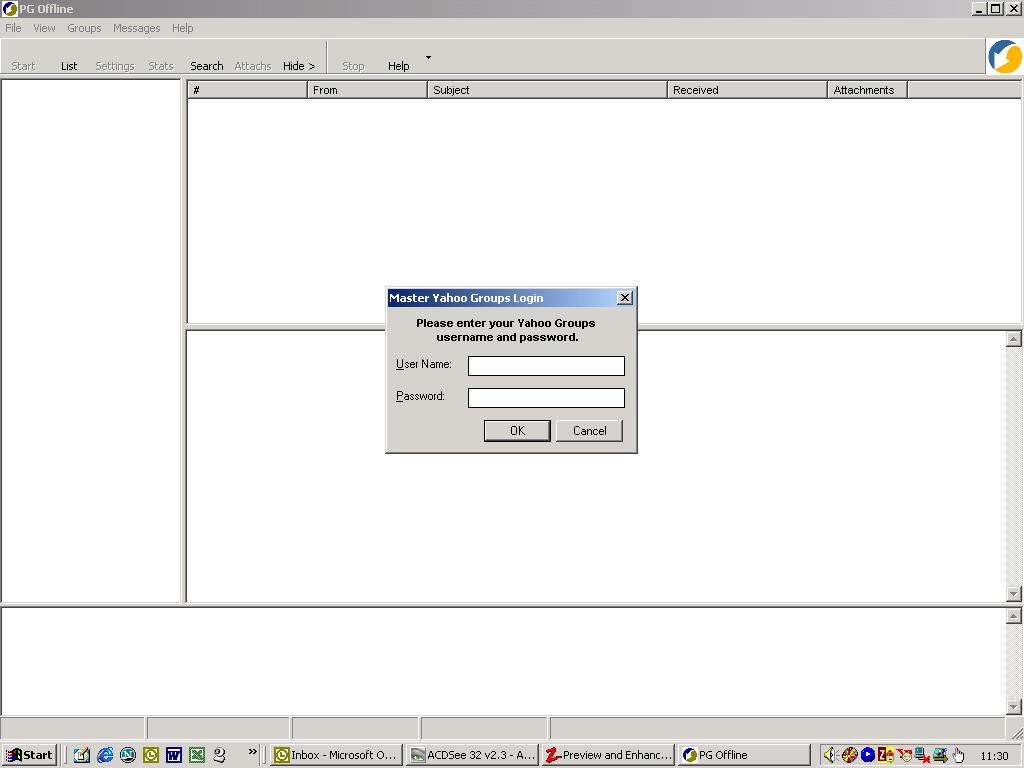
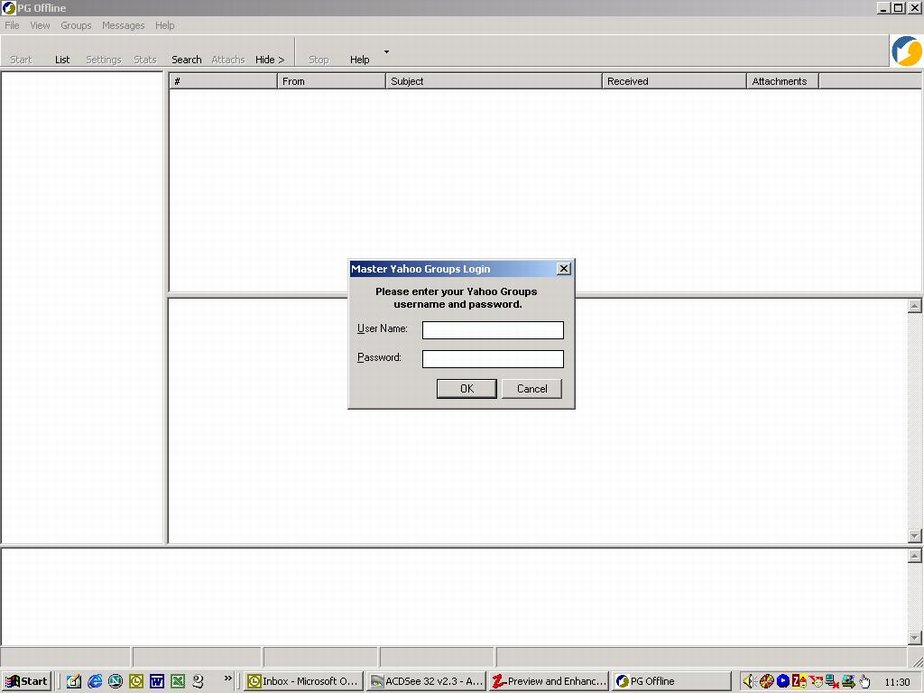
Complete Login information & hit OK
|
|
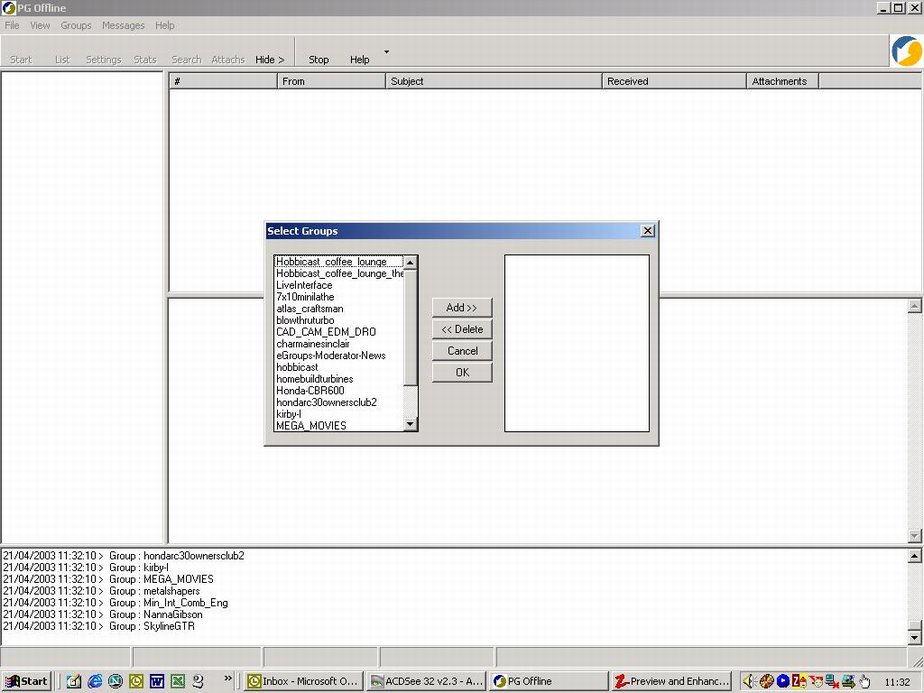
Choose Groups--> Get Groups List
|

|
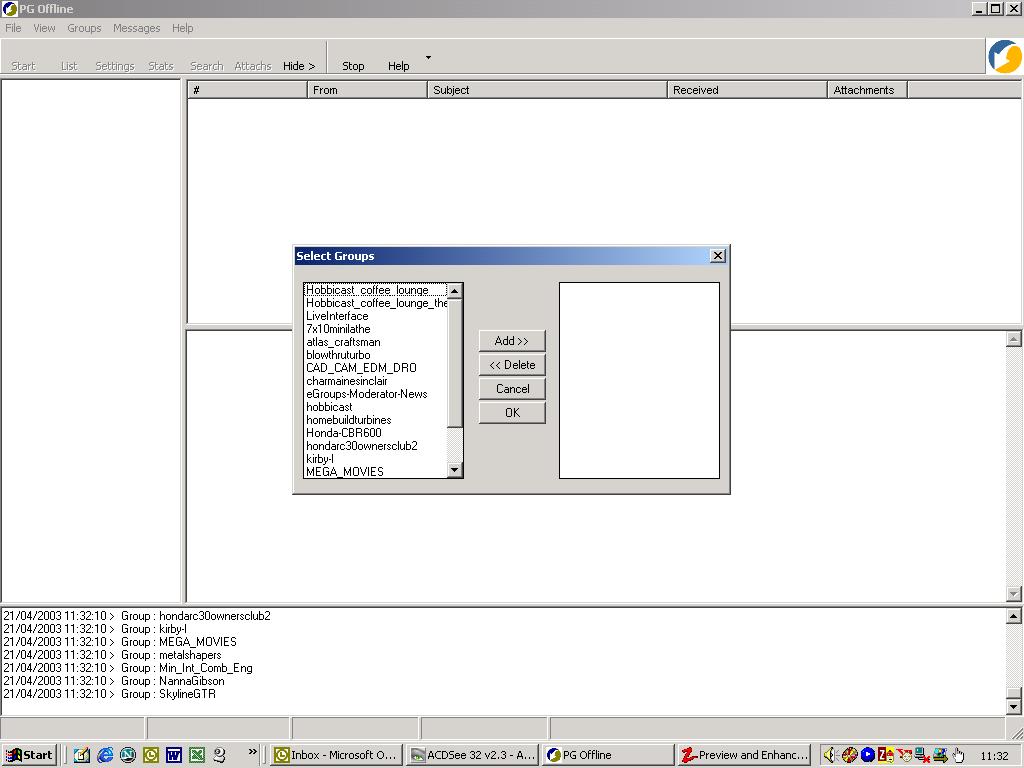
Once the group list is displayed you can choose which groups to add to your group list.
|
|
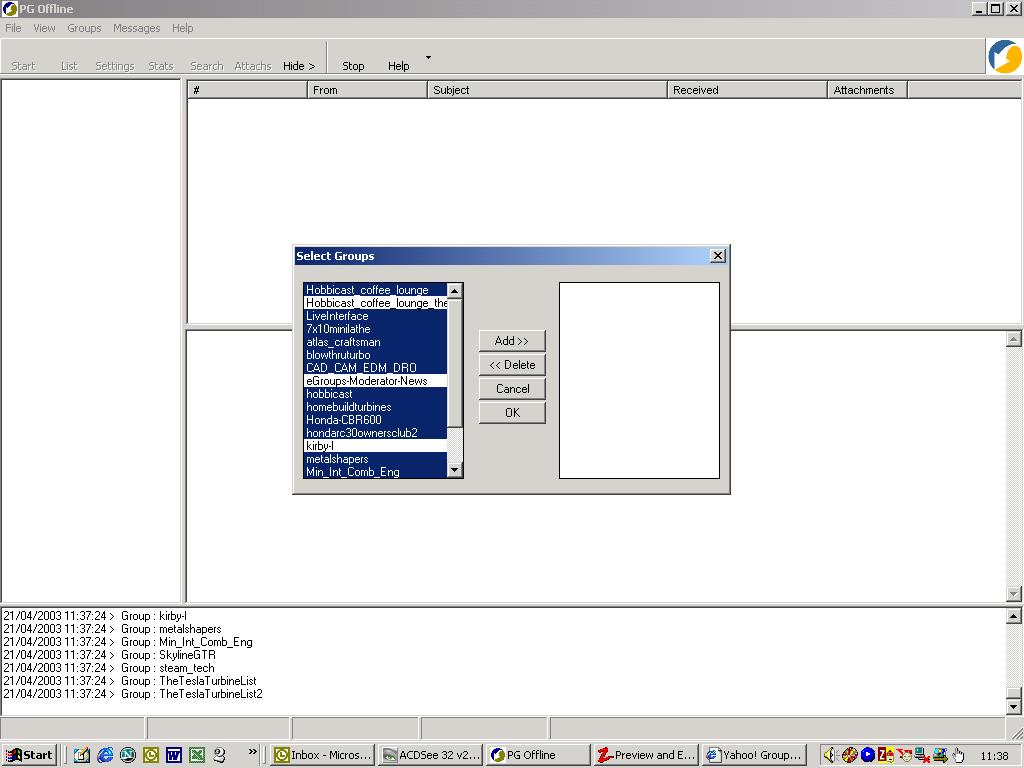
Hold the shift key down whilst selecting groups to highlight multiple groups.
|
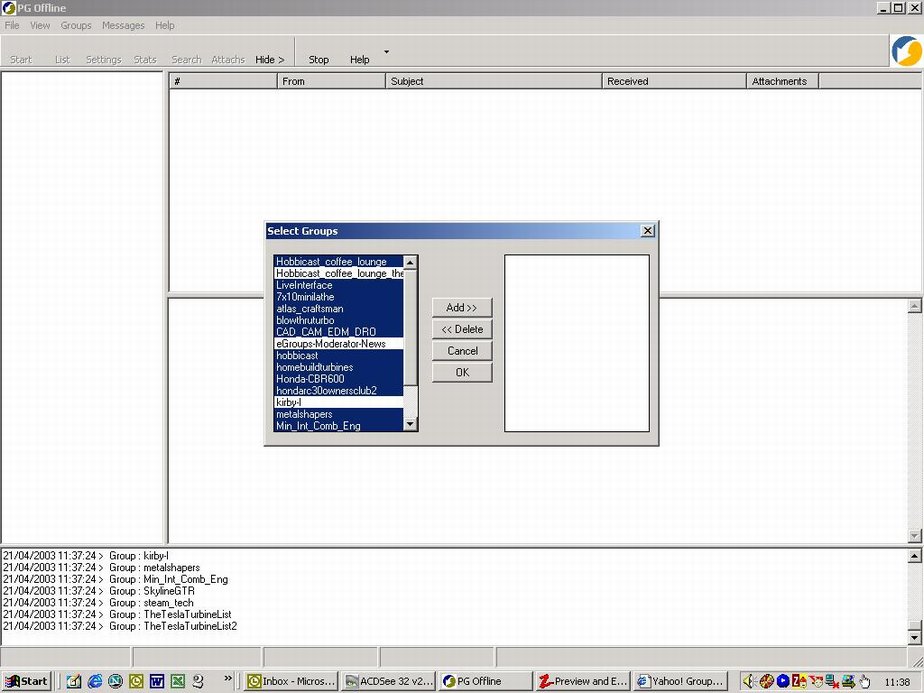
|
Choose Add>>. If you are happy with your selection hit OK.
If not use the Add>> & Delete>> buttons to alter your selection.
|
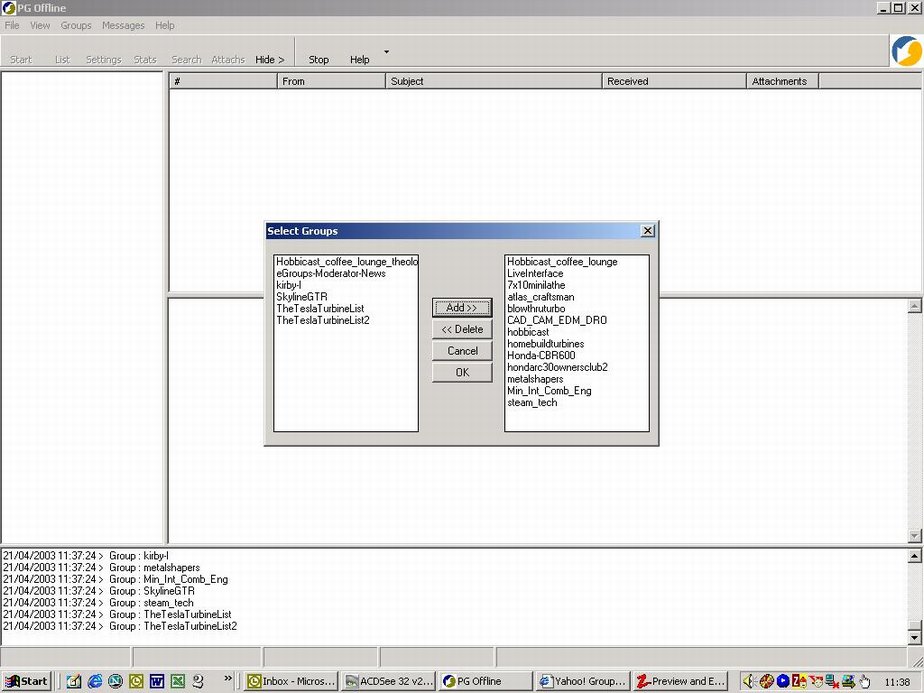
Now your group list is displayed in PGOffline.
|
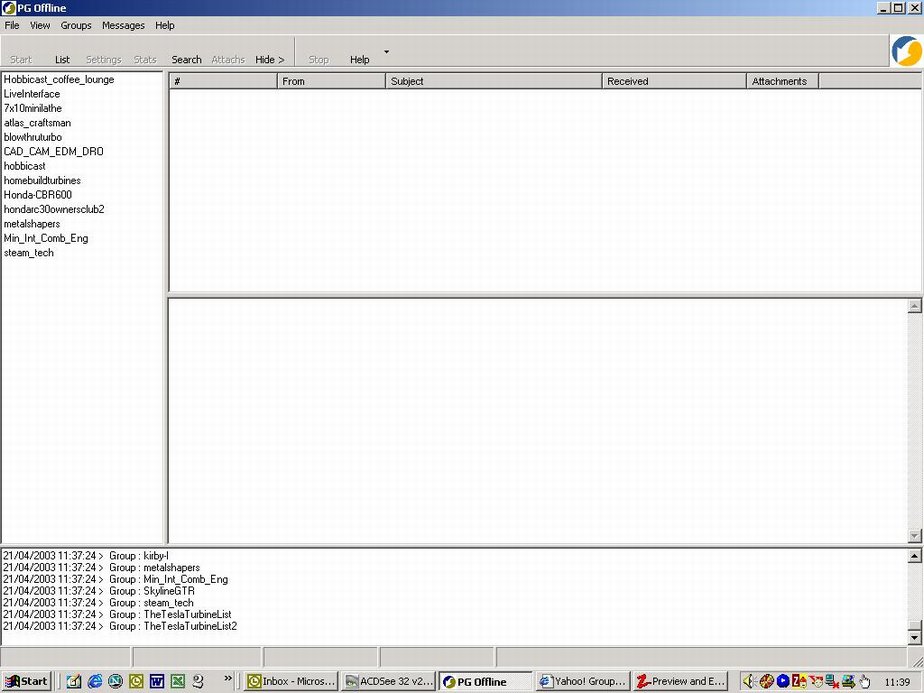
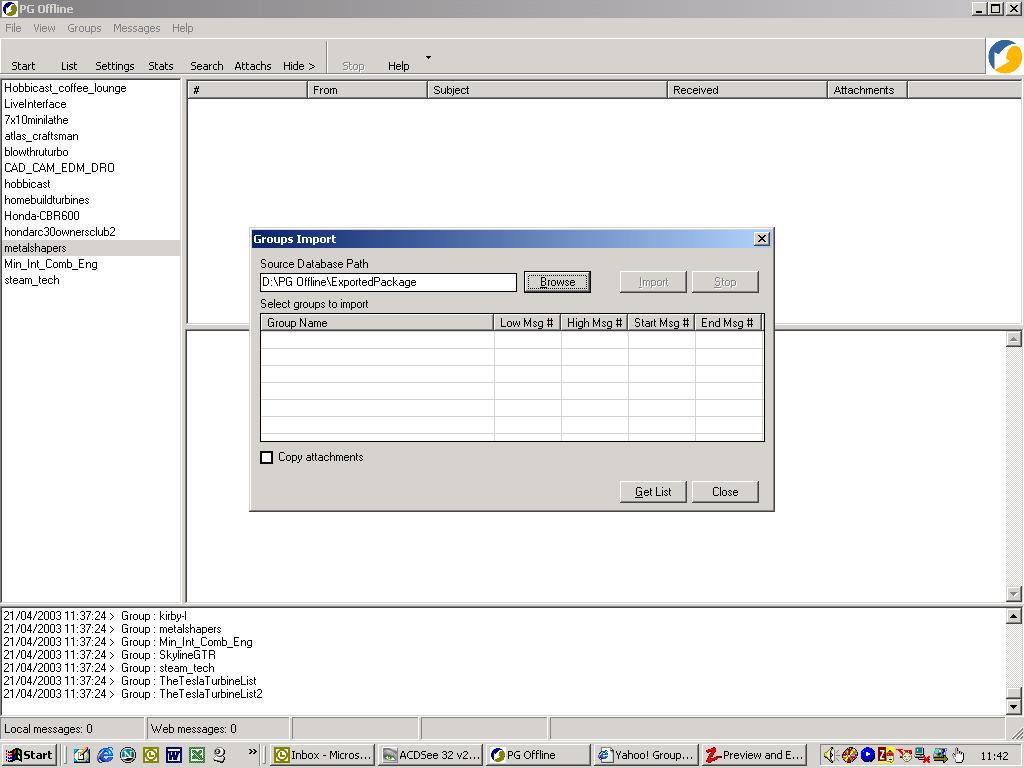
Choose File--> Import From Folder
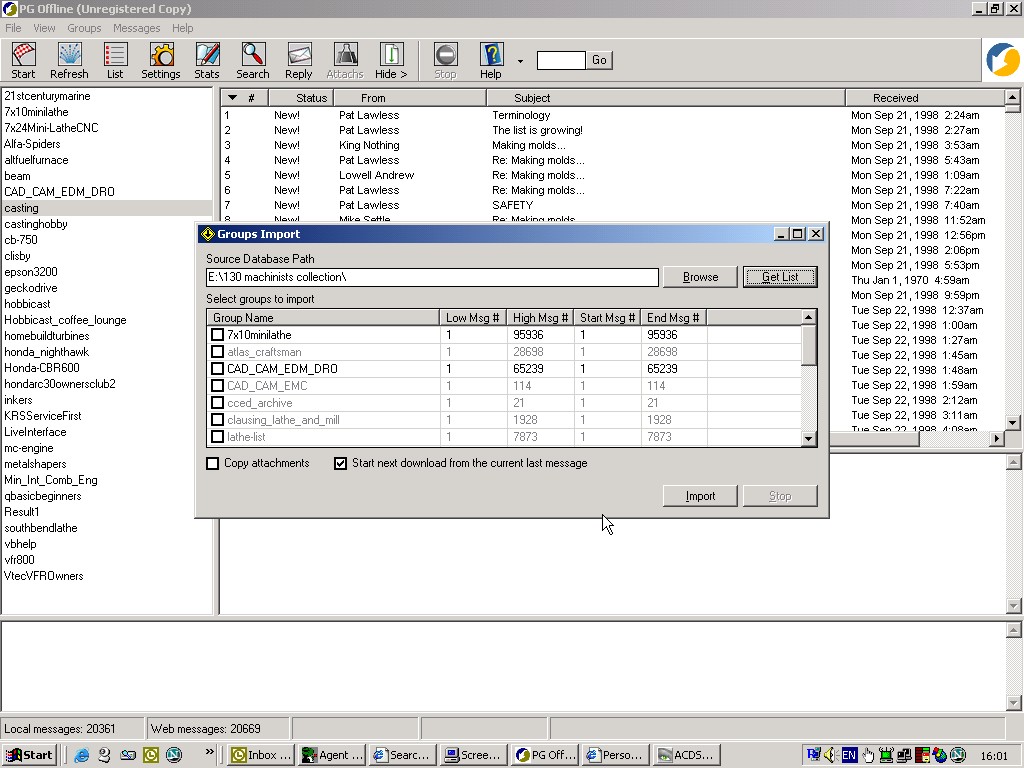
Enter the path name of the folder where you unzipped your group archive file (ygrpack.mdb).
N.B. only the folder path is required, not the file path.
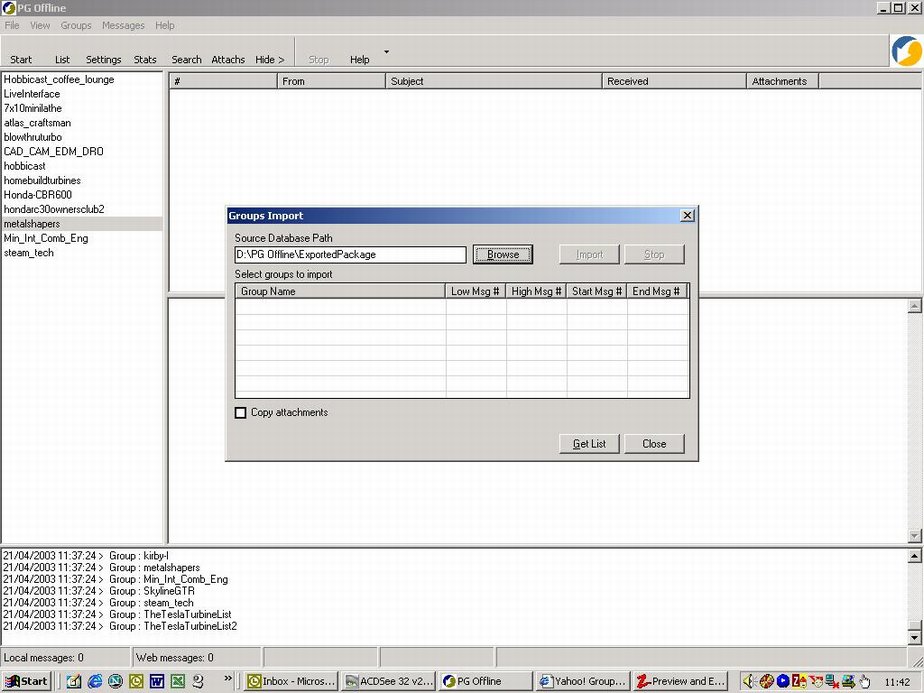
Hit the 'Get List' button. All groups in the archive will be displayed.
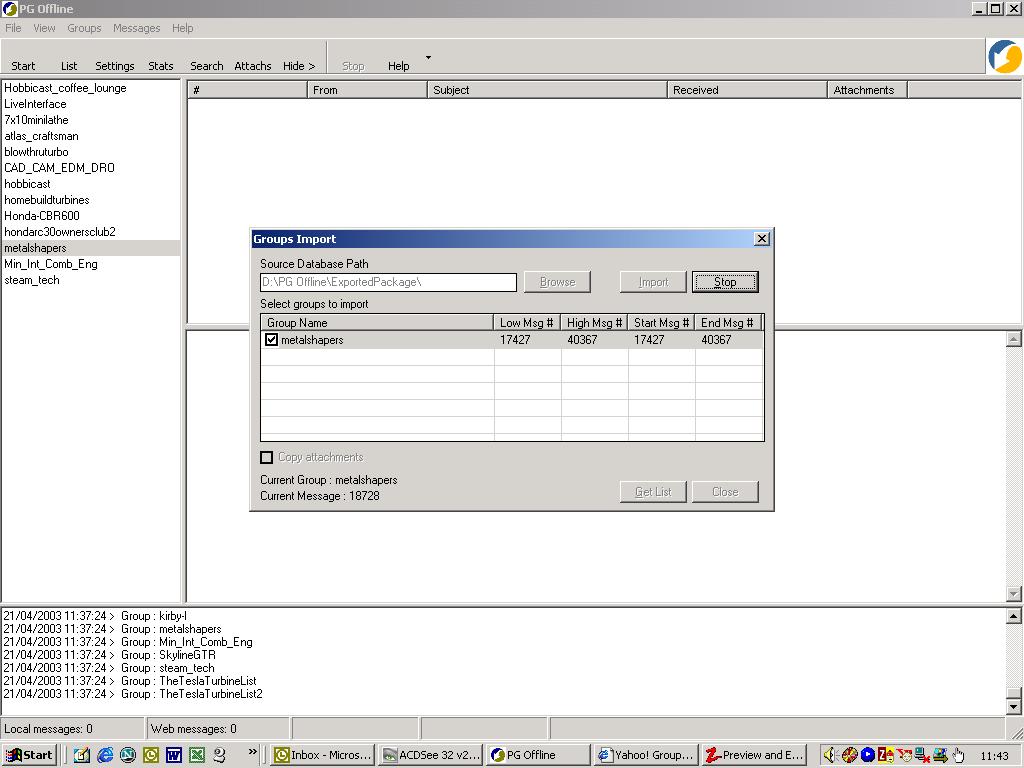
Choose groups to import by checking the boxes next to the group name.
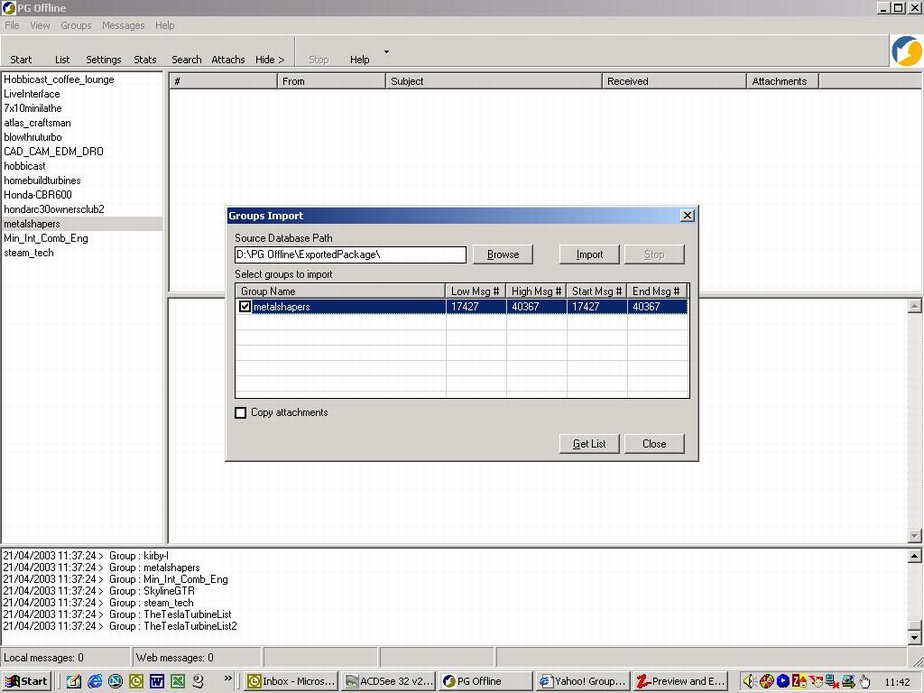
Hit the 'Import' button. Now the group will be imported.
During the import process all buttons are greyed out except the Stop button.
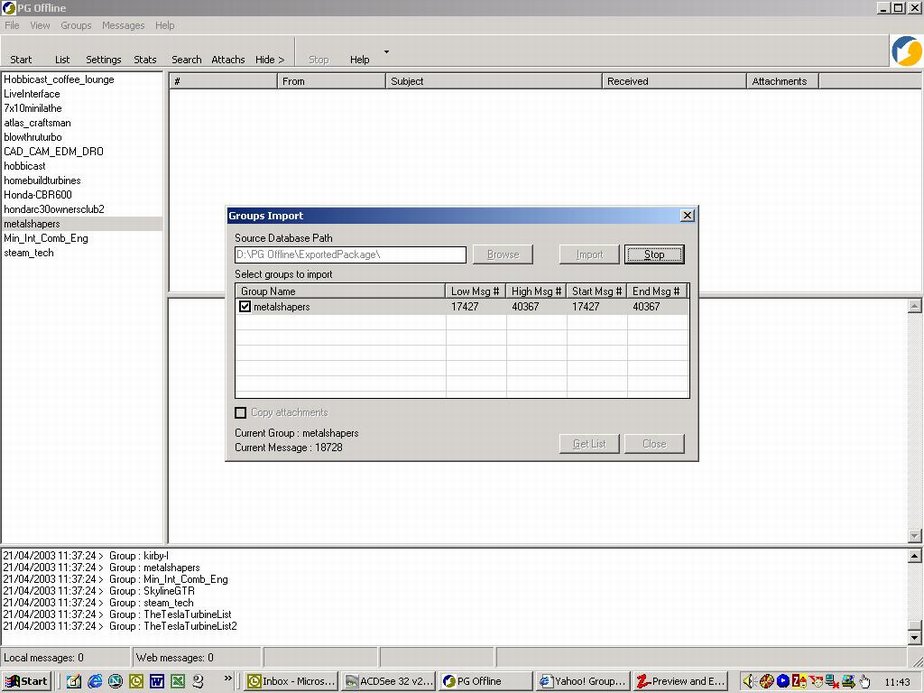
Now the import process is complete. Choose the Close button.
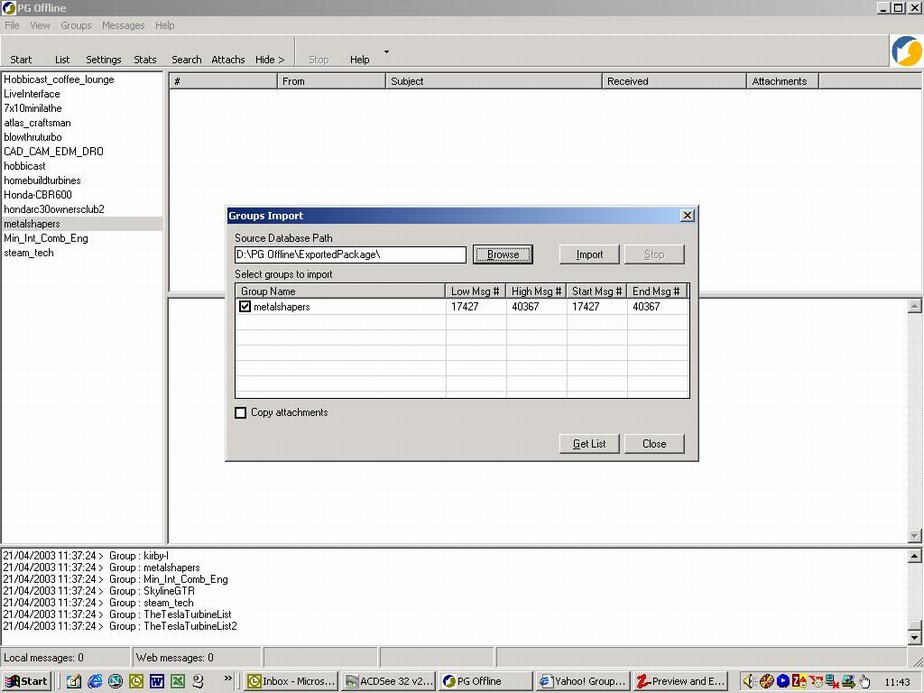
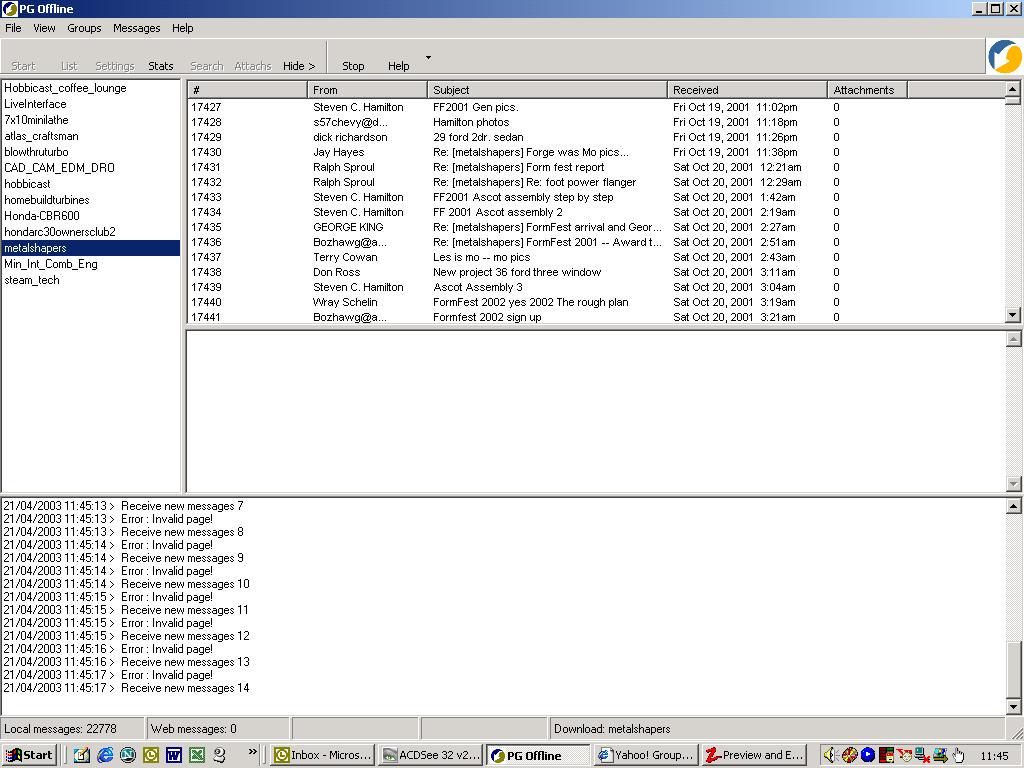
Now highlight the group name to see the messages for that group.
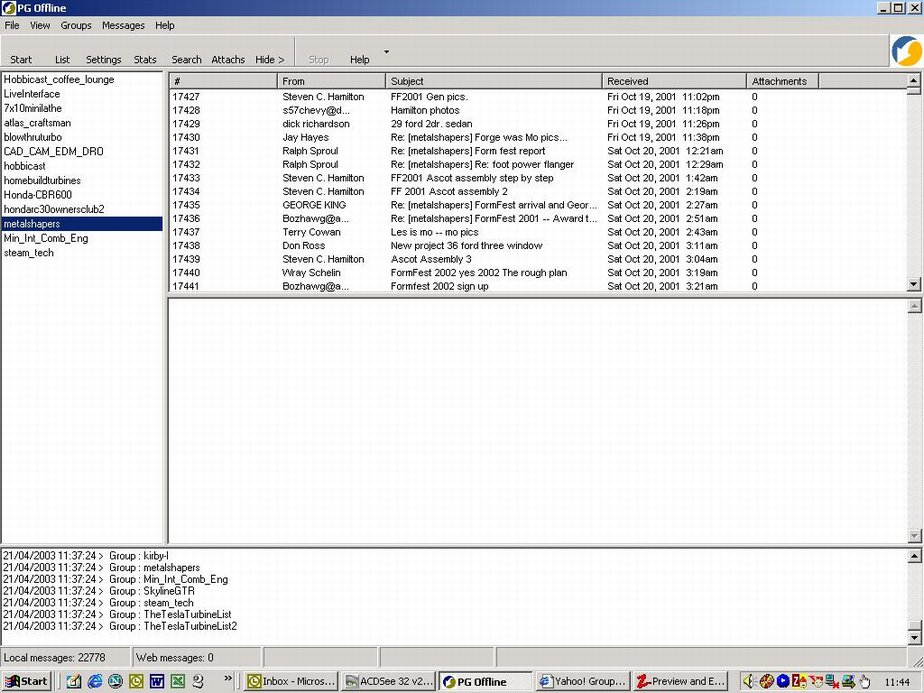
Normally you would choose Start to get new messages for the group.
In this case this will not work because the first 17000 odd records for this group have been archived.
Pressing Start here results in errors in the log window at the bottom of the screen.
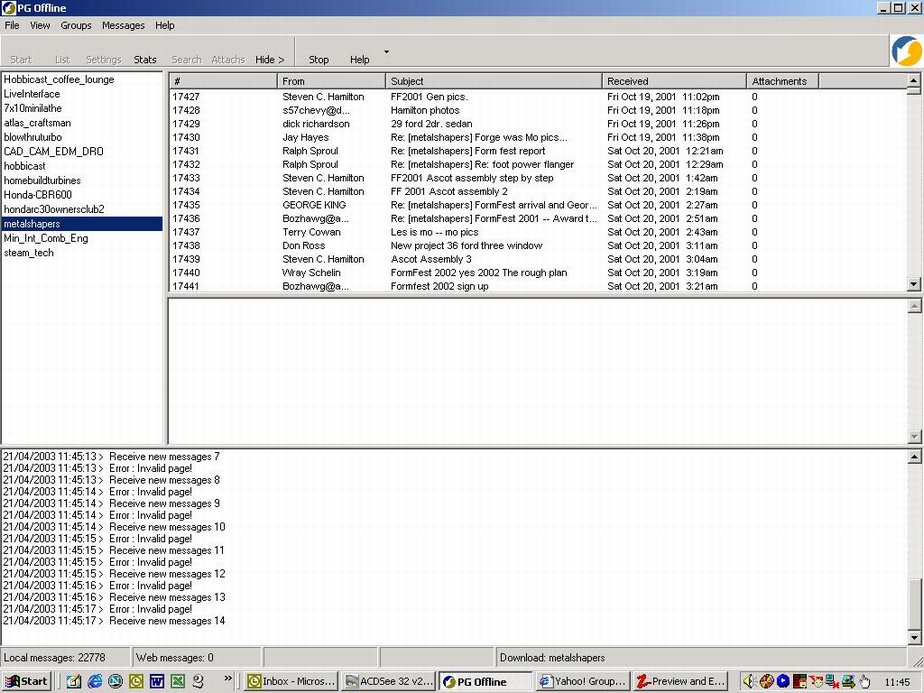
Choose Groups--> Group Settings

Now set the 'Start download from the message number' field to the highest numbered message for that group.
In this case 40367. Now press OK.
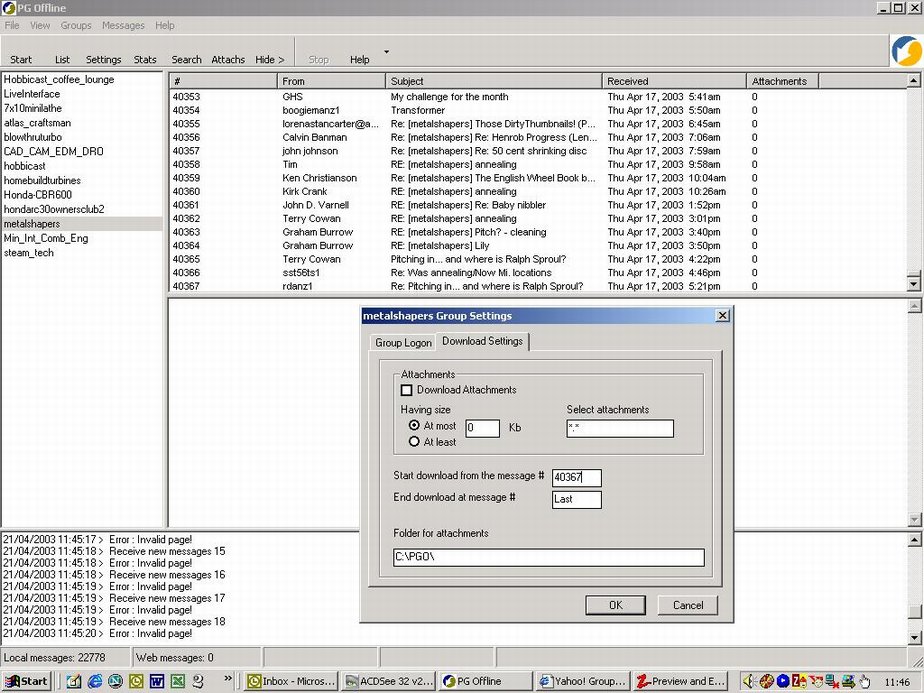
You can then choose Start or Messages--> Refresh All Groups
to download new messages to the group.